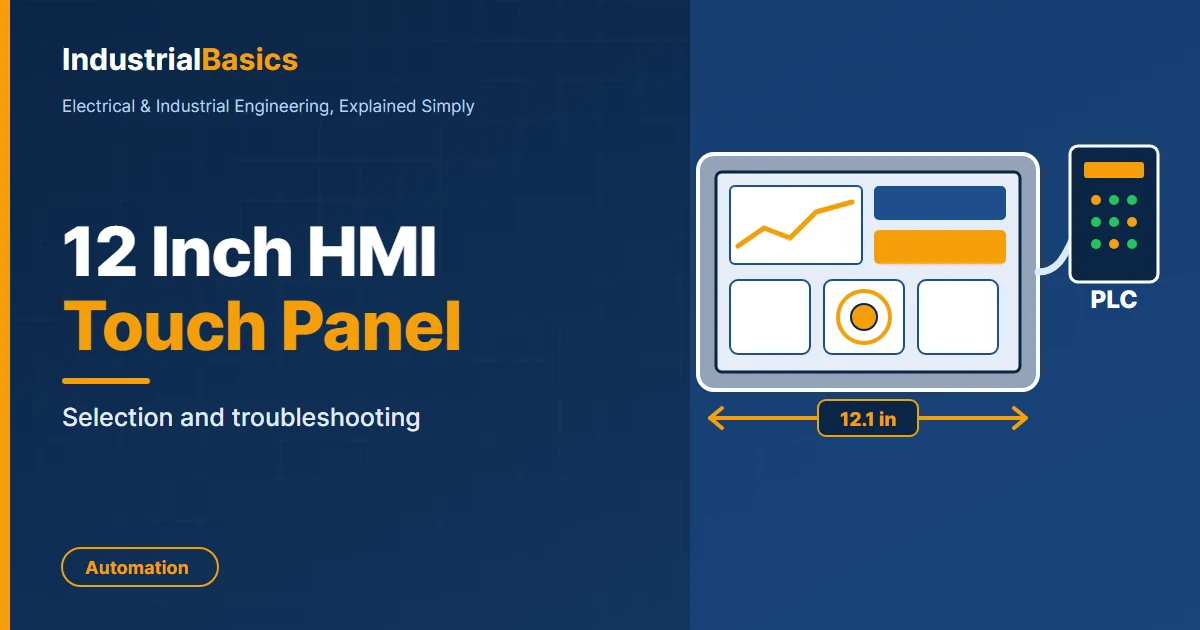
To choose a 12 inch industrial HMI touch panel, first confirm it can communicate with your PLC, then check its software, display, front protection, temperature range and 24 V supply. If an installed panel misbehaves, work from the symptom: recalibrate misplaced touches, check the cable and IP settings for lost PLC data, and check the project and memory card if it will not start.
| Check | What to confirm | TP1200 Comfort example |
|---|---|---|
| Display | Size and resolution | 12.1 in, 1280 x 800 |
| Touch | Technology and use with gloves | Analog resistive |
| Communication | Ports and PLC driver | 2 x PROFINET RJ45, 1 x RS-422/485 |
| Power | Voltage, current and wattage | 24 V DC, 0.85 A, 20 W |
| Protection | Front and rear rating | IP65 front, IP20 rear |
| Temperature | Range in your mounting position | 0 to 50 °C, vertical landscape |
How to Select a 12 Inch HMI
1. Start with the PLC connection
Confirm that the panel’s software has a tested driver for your exact controller and protocol. A matching Ethernet port does not prove that two devices speak the same protocol. Our guide to HMI communication drivers explains how to check this, and how to select a PLC covers the controller side.
2. Check software and licensing
The engineering software often costs more over time than the hardware difference between panels. Check the licence, version compatibility with your PLC tools, and whether your team can maintain the project.
3. Decide whether 12 inches is right
A 12-inch screen suits machines that need a process view, trend and controls on one page. On the TP1200 Comfort, the active area is 261.1 x 163.2 mm. If your screens are simple, a smaller panel may be enough. Good layout matters more than size, as our HMI display design guide shows.
Touch technology also matters. The TP1200 uses an analog resistive touch screen. Test any shortlisted panel with the gloves your operators actually wear.
4. Match the environment
| Mounting position | Permitted temperature (TP1200 class) |
|---|---|
| Landscape, vertical | 0 to 50 °C |
| Landscape, inclined up to 35° | 0 to 40 °C |
| Portrait, vertical | 0 to 40 °C |
| Portrait, inclined up to 35° | 0 to 35 °C |
The manual also lists relative humidity of 10 to 90% with no condensation at the rear. Read IP ratings carefully. The TP1200’s IP65 applies to the front when mounted. Its rear is IP20, with no protection against water, dust or noxious gas, so the enclosure must protect it.
5. Plan power and mounting
Comfort Panels accept 19.2 to 28.8 V DC and must be powered from a supply with safe electrical isolation (SELV/PELV). A panel also adds heat to the cabinet, because its power loss is about equal to its power consumption, or roughly 20 W for the TP1200.
For the front seal to achieve its rating, Siemens requires a mounting surface 2 to 6 mm thick, flat to within 0.5 mm, with a surface roughness no greater than Rz 120 in the seal area. A thin or warped door can let water in even when the panel itself is rated IP65.
Worked Example: Power and Heat Budget
A cabinet’s 24 V DC rail feeds a TP1200 Comfort, a PLC and some I/O. The non-HMI values below are illustrative.
| Load | Maximum current |
|---|---|
| TP1200 Comfort | 1.20 A |
| PLC | 2.50 A |
| I/O and sensors | 1.30 A |
| Total | 5.00 A |
| With a 25% design margin | 6.25 A |
A standard 10 A 24 V supply would leave generous headroom here. Also check the voltage at the panel: from a 24 V rail, you can lose at most 4.8 V before reaching the 19.2 V minimum, though a good design stays far above that. Add the panel’s roughly 20 W to your cabinet heat calculation.
Troubleshooting a Touch Panel
| Symptom | Likely cause | What to do |
|---|---|---|
| Touch lands off target | Parallax from mounting or viewing angle | Run touch calibration in settings |
| Touch does not respond on a Windows-based panel | Touch service stopped | Check the touch input service, as in Schneider’s HMIG5U guidance |
| Touch wears out early | Sharp objects or excessive pressure | Use fingers or an approved stylus |
| No PLC values | Cable, IP, driver or PLC fault | Work through the communication checks below |
| Project does not start | Start delay set to “Forever” | Change the delay in the Start Center settings |
| “System card is missing or defective” | Card absent or failed | Insert or replace with an approved card |
| “System card error” | Card from a different device type | Use a card from the same device type |
| Panel overheats or shuts down | Poor clearance or hot cabinet | Check clearances, tilt and cabinet temperature |
| Water behind the panel | Seal or mounting surface problem | Inspect seal, clips and door flatness |
If the HMI cannot reach the PLC
- Check link lights at both ends and try a known-good cable.
- Confirm IP address and subnet. Both devices need compatible settings, and each address must be unique.
- Ping the PLC from a laptop on the same network.
- Check the HMI connection settings, including driver, PLC address and rack or slot where used.
- Confirm the PLC is running and that access to it is permitted.
- Read the system alarms. On Comfort Panels, they only appear if an alarm window was configured.
For where the panel fits in the wider system, read what is a PLC and PLC vs DCS vs SCADA. If panels reboot during disturbances, check power quality and consider a suitable UPS.
Frequently Asked Questions
What is a 12 inch industrial HMI touch panel?
It is a rugged operator screen, typically around 12.1 inches, used to monitor and control a machine through a PLC. Many are panel-mounted with a sealed front.
What resolution is a 12 inch HMI?
It varies by model. The Siemens TP1200 Comfort is 12.1 inches at 1280 x 800 pixels.
How much power does a 12 inch HMI use?
Check the datasheet. The TP1200 Comfort is rated at 24 V DC, 0.85 A and 20 W, with a load-dependent current up to 1.20 A.
Does IP65 mean the whole HMI is waterproof?
No. On the TP1200 Comfort, IP65 applies to the front when mounted. The rear is IP20, with no protection against water, dust or noxious gas.
Why is my HMI touch screen off target?
Parallax from the mounting position or viewing angle is a common cause. Run the touch calibration from the panel’s settings.
Why is my HMI not communicating with the PLC?
Check the cable, power, IP address and subnet, driver or connection settings, and whether the PLC is running. Then review the panel’s system alarms.
Can I use a pen on an HMI touch screen?
Avoid it unless the maker approves one. Siemens warns that pointed or sharp objects can shorten touch screen life and may cause total failure.
Can an HMI be mounted at an angle?
Yes, within limits, but inclination reduces cooling. On Comfort Panels, a 35° landscape tilt lowers the permitted temperature from 50 °C to 40 °C.
Sources and Further Reading
- Siemens: SIMATIC HMI Comfort Panels Operating Instructions (07/2022): specifications, mounting, calibration and fault messages.
- Schneider Electric: What to Check if an HMIG5U Touch Screen Is Not Responding: touch service checks.